Devlog · VSCode Extension · 8 min read
Smart Korean Grammar Assistant: VSCode Korean Spell Checker Extension Devlog
A retrospective and technical note on developing a VSCode Korean grammar checker extension with the Bareun AI API
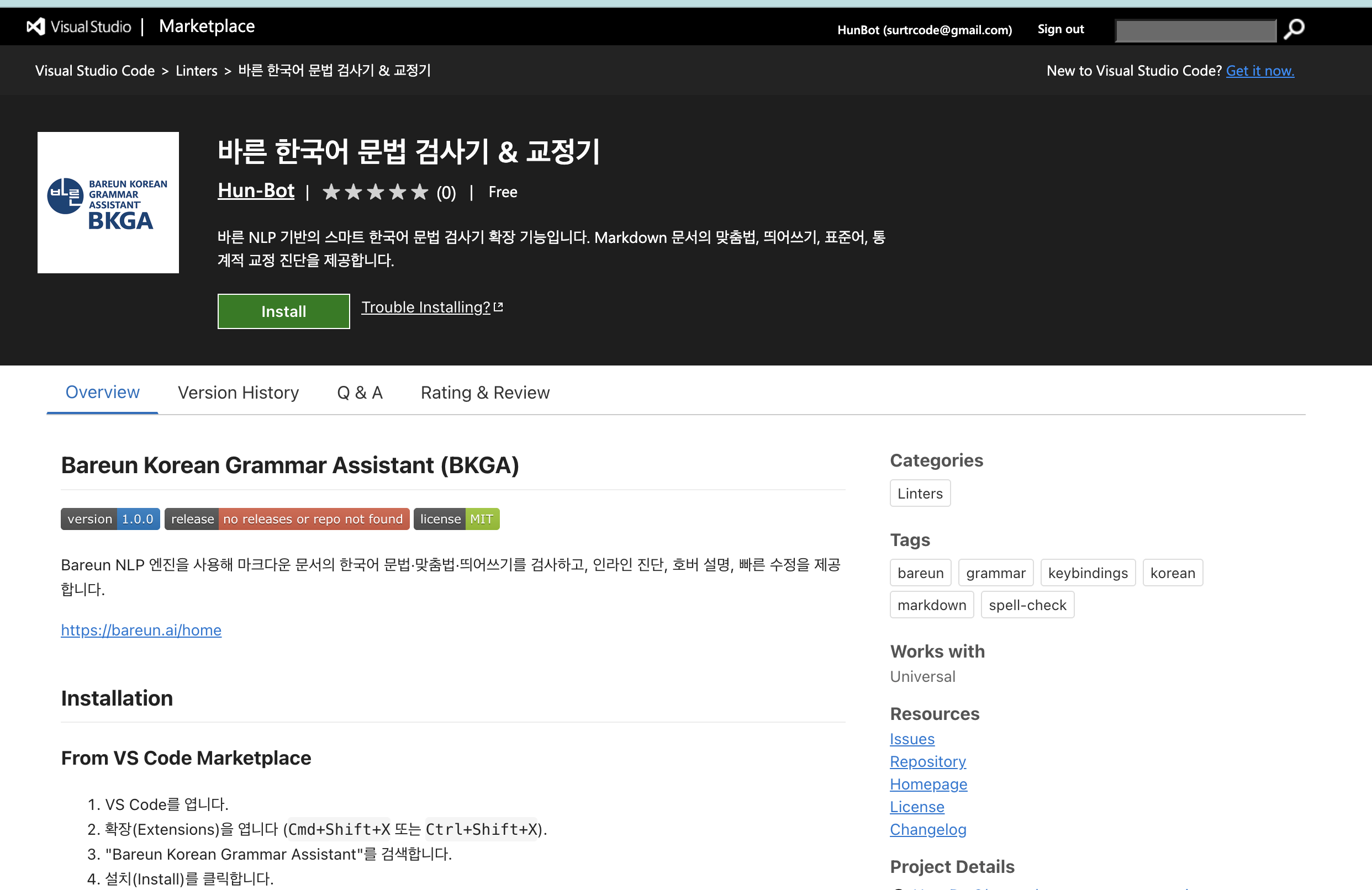
Smart Korean Grammar Assistant: Retrospective and Technical Notes
https://github.com/Hun-Bot2/smart-korean-grammar-assistant
Motivation
When I write, I often use Bareun Korean [https://nara-speller.co.kr/speller/] to check grammar. But repeatedly using alt+tab, copying text, and pasting it became inconvenient. There was a VSCode extension called vscode-hanspell, but it had last been updated three years ago, so I did not feel comfortable using it.
While looking for something better, I found the services provided by Bareun AI. I thought their Korean recognition quality was good, so I decided to build my own extension.
Markdown File
My blog is not fully finished yet, so for now I open VSCode and write posts in Markdown files. I am writing this post that way too.
So I wanted the extension to check only .md files inside specific files or folders. Otherwise it would catch every file and increase API usage. I wanted to build it in a form that tells the user about spelling and grammar in real time, targeting Korean only.
Before development, I emailed the company and simply asked, I want to build this. Is that okay?
[Actual email]

Contact From the Company
The next day, the CEO contacted me and suggested that we define simple development requirements and hold a meeting to discuss concretely how to build it.
The meeting was scheduled for November 10. On that day, we reviewed what features would be useful and what development approach would be good. After the meeting, I gradually refined the parts I had already built.
Core Technology and Architecture
VSCode Extension API: Main APIs Used
This extension uses several VSCode APIs:
Main APIs:
vscode.languages.createDiagnosticCollection: Converts Bareun responses and offline heuristics into Diagnostics and draws colored underlines in the editor.vscode.languages.registerCodeActionsProvider,registerHoverProvider: Shows Bareun suggestions and user dictionary information in Quick Fix and Hover.vscode.workspace.onDidChangeTextDocument: Calls the analysis pipeline with a 350ms debounce whenever a Markdown document changes, and discards stale responses by comparingTextDocument.version.vscode.commands.registerCommand: Exposes user commands such asbkga.fixSelection,bkga.syncCustomDictionary, andbkga.toggleEnabled, handling selection-based auto-correction and opening the user dictionary panel.vscode.window.createStatusBarItem&createWebviewPanel: Shows analysis state and issue count in the status bar, and renders the user dictionary panel as a Webview.
The code below shows the document filter that decides which documents to analyze and the debounce logic that re-analyzes after a short delay when text changes.
First, it checks whether the language is Markdown, checks the .md file path, and applies the workspace-relative path.
Only Markdown files that satisfy the includedPaths condition are analyzed.
Every text change event cancels the previous timer and sets a new 350ms timer.
function shouldAnalyze(doc: vscode.TextDocument): boolean {
  if (doc.languageId !== 'markdown') return false;
  const includePaths = vscode.workspace.getConfiguration('bkga').get<string[]>('includePaths', ['**/*.md']);
  const workspaceFolder = vscode.workspace.getWorkspaceFolder(doc.uri);
  if (!workspaceFolder) return false;
  const relativePath = vscode.workspace.asRelativePath(doc.uri, false);
  return includePaths.some((pattern) => {
    const glob = new vscode.RelativePattern(workspaceFolder, pattern);
    return vscode.languages.match({ pattern: glob, language: 'markdown' }, doc) > 0;
  });
}

let debounceTimer: NodeJS.Timeout | undefined;
vscode.workspace.onDidChangeTextDocument((event) => {
  if (debounceTimer) clearTimeout(debounceTimer);
  debounceTimer = setTimeout(() => {
    if (!shouldAnalyze(event.document)) {
      diagnosticsManager.clearDiagnostics(event.document.uri);
      return;
    }
    diagnosticsManager.analyzeDocument(event.document);
  }, 350);
});
Project Structure
src/
├── extension.ts             # Entry point. Registers events, commands, and decorations
├── bareunClient.ts          # HTTPS Bareun API call and response parsing
├── diagnostics.ts           # Bareun Issue -> Diagnostic, Markdown heuristics
├── codeActions.ts           # Quick Fix provider
├── hoverProvider.ts         # Hover card + diff highlight + user dictionary link
├── decorations.ts           # Applies color themes by error type
├── status.ts                # Status bar state management
├── customDictionary.ts      # Bareun Custom Dictionary sync/settings management
├── customDictionaryPanel.ts # User dictionary Webview panel
└── customDictionaryMeta.ts  # Dictionary category metadata
extension.ts creates a DiagnosticsManager on activation, checks only Markdown documents, and connects with StatusBar/Decorations.
bareunClient.ts directly uses the Node HTTPS module to send POST requests to the Bareun REST API, then iterates through revisedBlocks in the response to extract offsets and categories.
The customDictionary*.ts files serialize and deserialize dictionary data between VSCode settings.json and the Bareun Custom Dictionary API.
Development Process and Troubleshooting
Biggest Difficulties
Problem 1: False Positives in Markdown-Specific Syntax
The Bareun API returns errors based on pure text offsets, but Markdown documents include inline code, links, shortcut instructions, and many other formats. If Diagnostics are shown directly, code blocks and English key combinations are marked as spacing or spelling errors, creating too many underlines and making the screen uncomfortable.
Problem 2: API Call Frequency and Stale Diagnostics
The onDidChangeTextDocument event fires every time a character is typed. With only a simple debounce, older requests sometimes returned late and overwrote newer input, causing a race condition.
Solutions
Solution 1: Markdown-Friendly Filtering Heuristics
Instead of parsing an AST, I first computed inline code ranges in diagnostics.ts, then removed diagnostics when English-heavy sentences, URLs, shortcut patterns, and similar snippets were detected.
const inlineCodeOffsets = doc.languageId === 'markdown' ? this.computeInlineCodeOffsets(fullText) : [];
const diagnostics = issues
  .map((issue) => {
    if (this.intersectsInlineCode(issue.start, issue.end, inlineCodeOffsets)) {
      return null;
    }
    const snippet = doc.getText(new vscode.Range(doc.positionAt(issue.start), doc.positionAt(issue.end)));
    if (this.shouldIgnoreSnippet(snippet, category, ignoreEnglishInMarkdown)) {
      return null;
    }
    return new vscode.Diagnostic(range, issue.message, this.mapSeverity(issue.severity));
  })
  .filter(Boolean);
shouldIgnoreSnippet detects English-only sentences, [link](url), shortcut combinations such as Cmd+K G F, and Korean+comma patterns such as Bareun,API, then filters SPACING warnings returned by Bareun. This allowed the extension to avoid most Markdown-specific syntax while checking natural-language sentences reliably.
Solution 2: Language Detection + Debounce + Version Verification
The shouldAnalyze function checks only Markdown files that match includePaths. After the 350ms debounce, the code stores TextDocument.version and compares it when a response arrives. If the document is no longer current, the result is discarded. This prevents duplicate API calls while typing and also prevents late results from overwriting newer diagnostics. Non-Markdown files are immediately cleared through DiagnosticsManager.clearDiagnostics, so no API request is made.
Favorite Feature
My favorite part is the Hover card. It compares the original text and Bareun suggestion in a diff style, and simultaneously shows user dictionary status so the user can add or remove words directly.
const markdown = new vscode.MarkdownString();
const diff = this.buildDiffHighlight(originalText, suggestion);
markdown.appendMarkdown(`#🇰🇷 ${categoryInfo.name}\n\n`);
markdown.appendMarkdown(`**원문**: ${diff.originalHtml}\n\n`);
markdown.appendMarkdown(`**대치어**: ${diff.suggestionHtml}\n\n`);
markdown.appendMarkdown(`**도움말**: ${diagnostic.message}\n\n`);
markdown.appendMarkdown(this.buildCustomDictionarySection(hoveredWord, dictMatches));
Because I escape HTML directly and apply highlighted ranges inside <code> blocks, the diff is stable even in Markdown. I also liked that dictionary commands can be executed directly from Hover.
I considered increasing the Hover size, but I decided to adjust it later after receiving user feedback, if there are users.
Results and Future Plans
Result: Finished Extension Usage Notes
As of November 15, I am still the only user. If users appear later, I will write and share a new post.
Future Plans
I am also considering making this into a Chrome extension. Through feedback, I want to fix buggy features and inaccurate parts and provide a better extension.
Things I am thinking about include ways to reduce API usage and whether Bareun AI’s morphological analysis can be applied somehow. Since I deployed it today and exams are close, I will think about these later.
Below is the result of asking AI to explore development directions.
Short-Term Plan
- SecretStorage-based API key management: Currently the key is entered as plain text in VSCode settings. I plan to store it in SecretStorage through a Quick Pick on first run and build a UI connected to settings.
- includePaths convenience feature: Add a command palette UI to quickly register frequently used blog folders in
bkga.includePaths.
Mid-Term Plan
- Paragraph-level Promise Pool: Chunk long Markdown documents by paragraph, send multiple Bareun requests concurrently, and limit concurrency to maintain UI responsiveness.
- Webview panel editing support: Prepare a two-way UI where words can be added/deleted directly in the user dictionary panel and synced.
Long-Term Plan
- Advanced correction mode: Custom model that provides tone/tightening suggestions like Grammarly, plus a Custom Editor that shows before/after diffs.
- Local pre-checker: Add a lightweight wasm-based rule set so simple spacing and whitespace errors can be detected without API calls.
Installation and Contribution Guide
Extension installation:
- VSCode Marketplace: Smart Korean Grammar Assistant
- In VSCode, go to
Extensions: Install Extensions, search forsmart korean grammar, and install it. On first run, the Bareun API key setup guide appears. - To install with VSIX, run
code --install-extension smart-korean-grammar-assistant-1.0.0.vsix.
Project contribution:
- GitHub repository: https://github.com/Hun-Bot2/smart-korean-grammar-assistant
- Check the local build with
npm install && npm run compile, then open the Extension Development Host withF5in VSCode and send a PR. - Please separate bug reports into Issues and ideas into Discussions so I can check them more quickly.
Closing
While building the extension, it was fun and interesting to upload something I made to the VSCode Extension Marketplace. At first, I emailed the company because I wanted to solve my own inconvenience, but I did not expect to meet the CEO and build an extension this way. I thank the Bareun AI team for their help and for giving me this opportunity. If feedback comes in, I will return with a development update.
Anonymous feedback
Leave a note about this post without a GitHub account. It is never published — only the author reads it.
Comments